Generating images
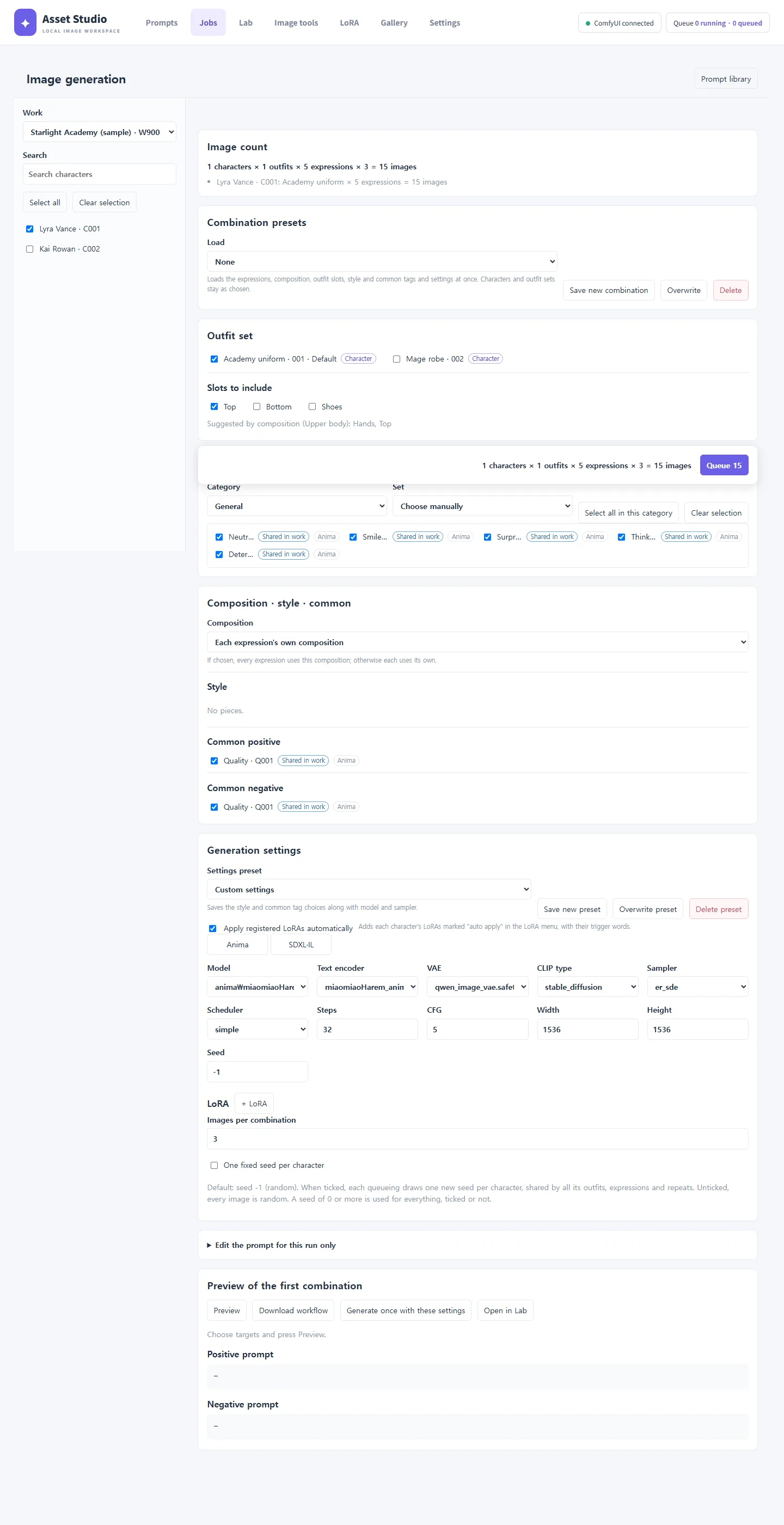
The Jobs menu queues characters × outfits × expressions × count in one go.
Steps
- Choose the Work and tick characters on the left. You can pick several.
- Tick Outfit set. The outfits the chosen characters can use are listed.
- Check Slots to include. Choosing an expression ticks the slots its composition suggests.
- Tick Expression. Select all in this category picks them all at once.
- Under Composition · style · common, tick what you need. Without a composition, each expression uses its own.
- Choose the model and sampler under Generation settings and set Images per combination.
- Check the count in the bar at the bottom (characters × outfits × expressions × count) and press Queue N.
Generation settings
The Anima / SDXL·IL tabs choose the model family. Switching shows only models and pieces of that family.
| Setting | Notes |
|---|---|
| Model | A diffusion model or checkpoint. [checkpoint] marks fine-tunes with their own text encoder. |
| Text encoder · VAE · CLIP type | Needed for Anima. For a checkpoint-style fine-tune, pick its own text encoder. |
| Sampler · scheduler · steps · CFG | As in ComfyUI. |
| Width · height | For images you will train a LoRA on, square (for example 1536×1536) is recommended. |
| Seed | -1 is random. One fixed seed per character uses one seed per character for all of that queueing. |
| LoRA | LoRAs you add yourself. Trained and registered LoRAs are added automatically while Apply registered LoRAs automatically is on. |
Save settings you use often with Save new preset and load them from Settings preset. To also keep the expression choice, composition and style, use Combination presets at the top.
Preview
Preview under Preview of the first combination shows the real prompt of the first combination. Check that the pieces joined the way you meant before queueing. LoRAs that will be applied automatically are listed as "Automatic LoRAs".
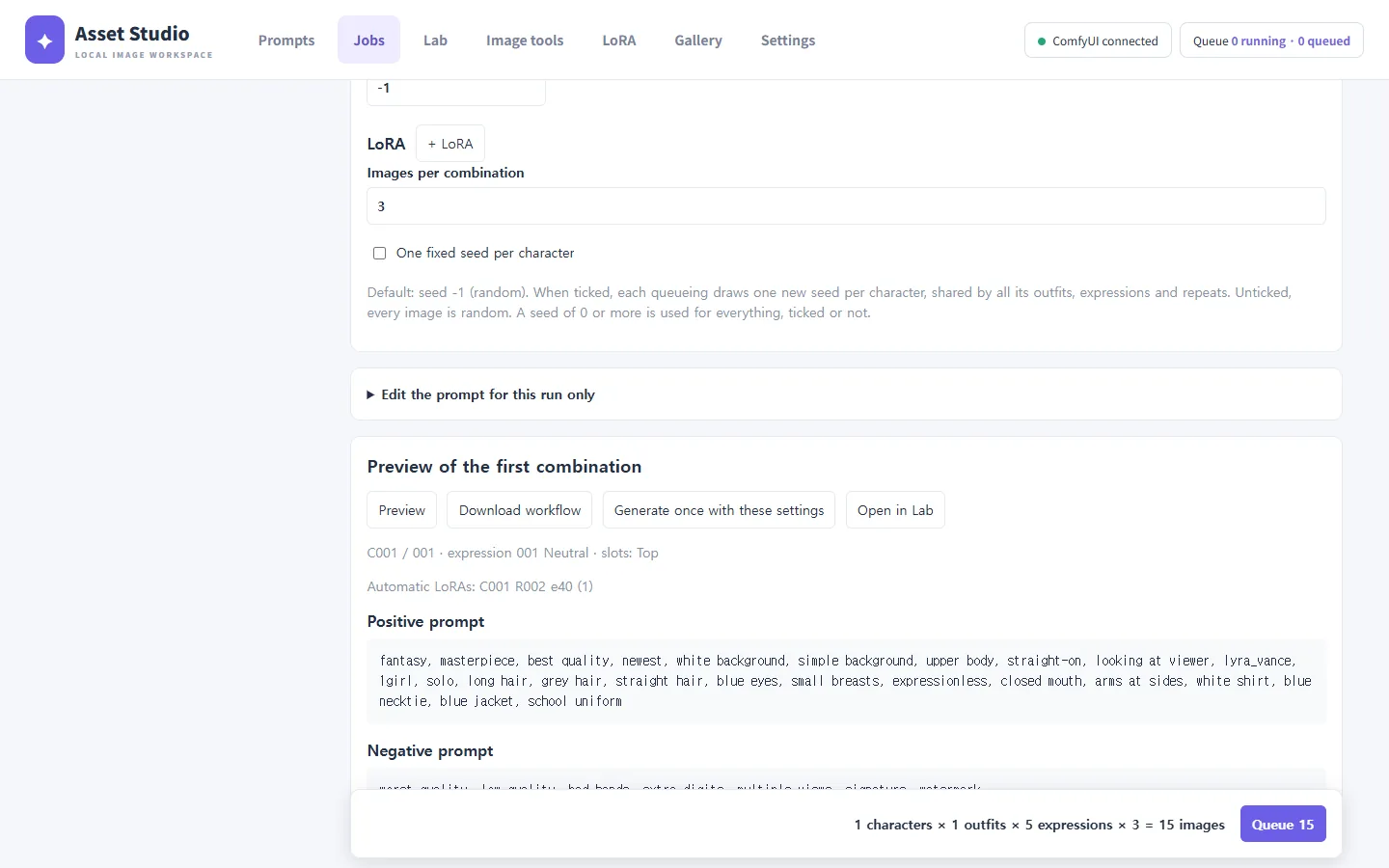
- Download workflow: save this combination as a ComfyUI workflow file.
- Generate once with these settings / Open in Lab: hand it to the lab to make a single image or try other settings.
- Edit the prompt for this run only: change the prompt for this queueing without touching the library.
The queue
The queue button at the top shows running and queued jobs; press it to open the queue panel.
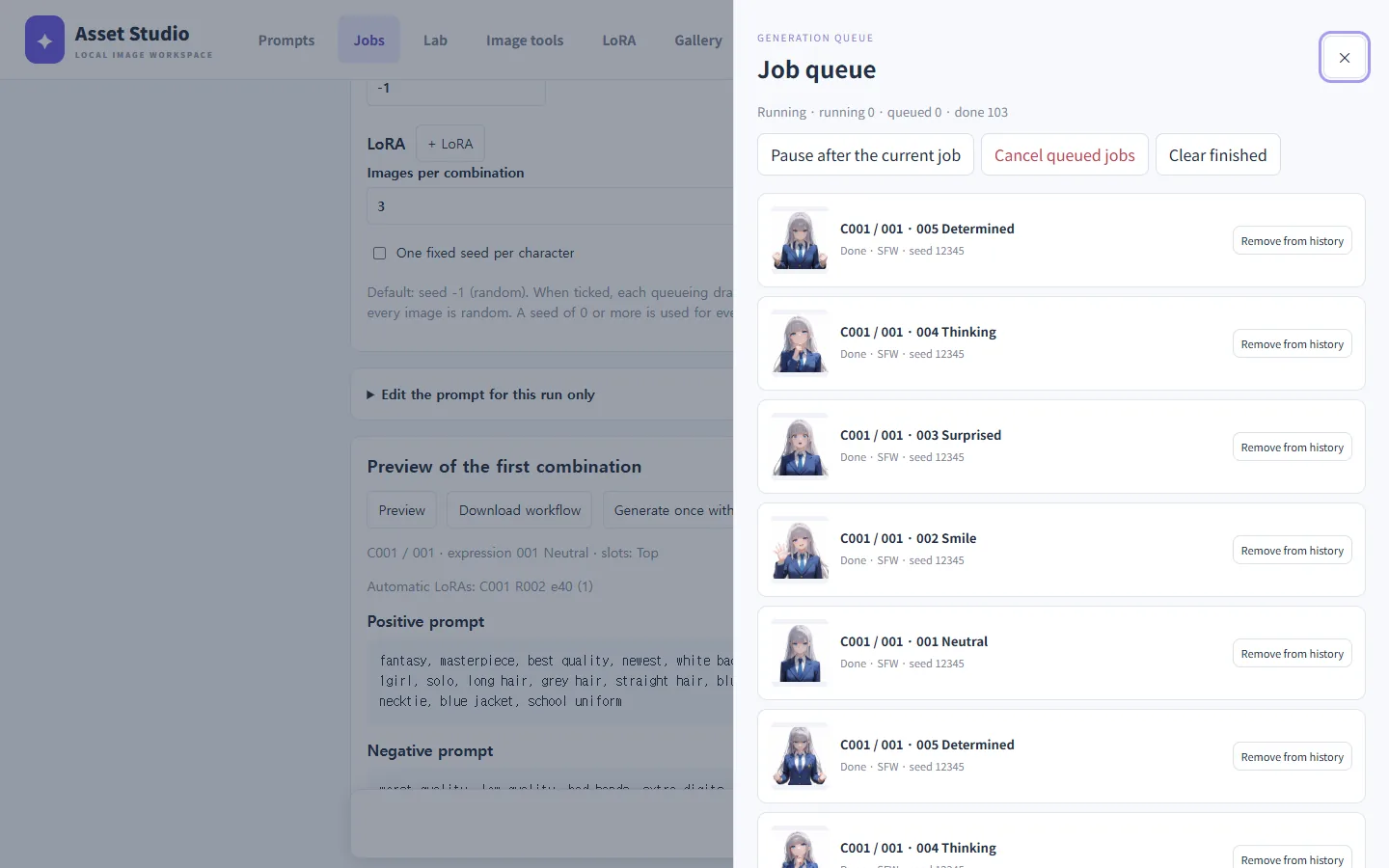
- Pause after the current job: finishes the image being made, then stops.
- Cancel queued jobs: cancels everything that has not started.
- A failed job pauses the queue. Read the error, fix the cause and resume.
Images are saved under outputs/<work>/<character>/<outfit>/ as <expression code>.png; making the same expression again adds _002, _003 and so on.