LoRA training
The LoRA menu trains a LoRA per character from images you passed, then registers the result so it is applied automatically when you generate that character. Training uses anima_lora; see the README for setting it up.
Choose a work and a character on the left to see the Dataset, Training and Registered LoRAs tabs.
1. Build a dataset
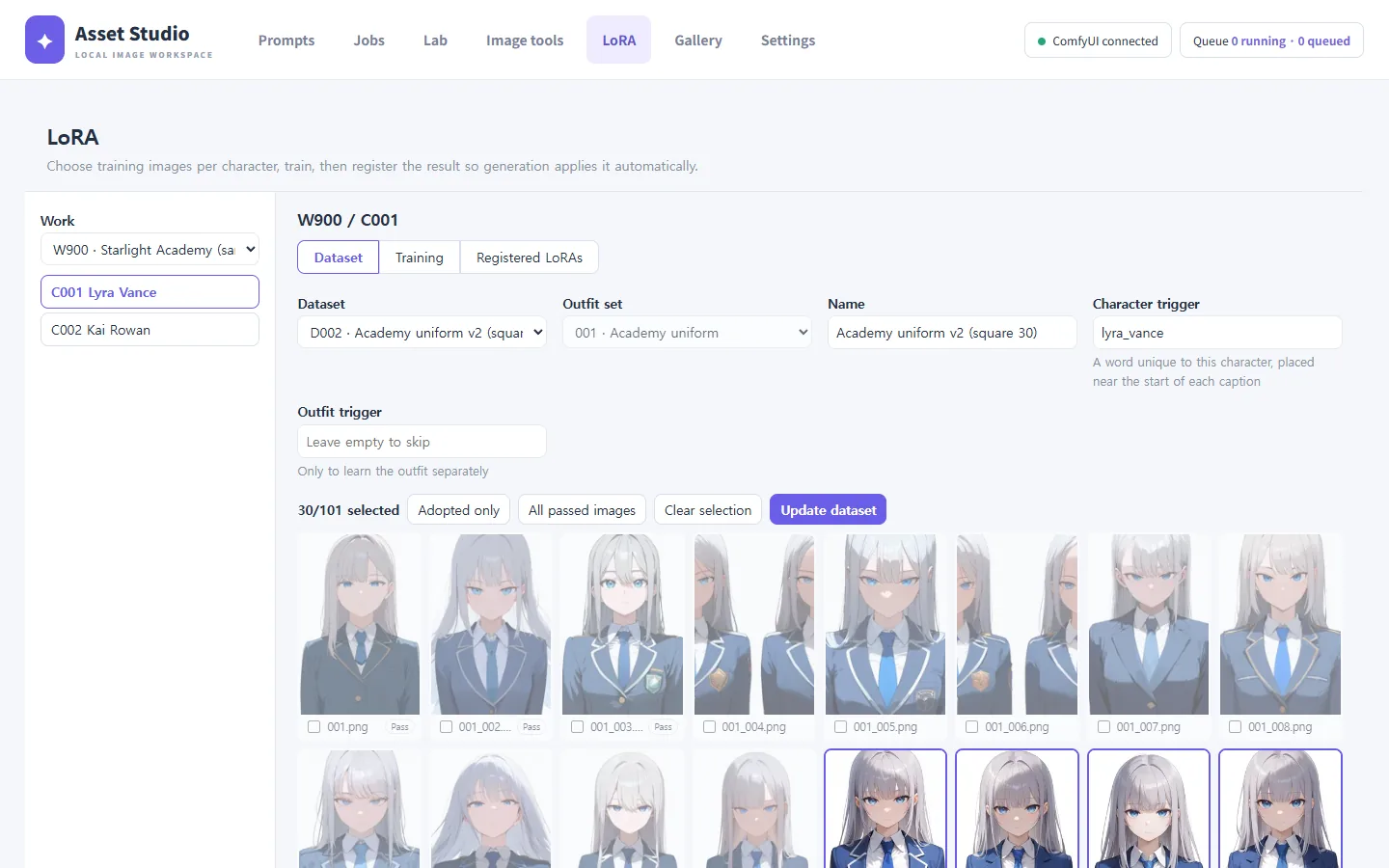
- Choose the Outfit set. A dataset covers one outfit set.
- Enter a Name and a Character trigger: a word unique to this character (for example
lyra_vance). It goes near the start of every caption and is added automatically when you generate. Fill in Outfit trigger too if the outfit should be learned separately. - Pick the images. All images of that character and outfit are listed with their gallery verdict (Adopted, Pass, Failed). Tick them one by one or use the buttons:
- Adopted only: the adopted image of each expression.
- All passed images: every passed image.
- Clear selection: untick everything.
- Press Create dataset.
Captions
Each image gets a caption automatically. The trigger, composition and expression tags stay; appearance and outfit tags are left out so that the trigger word learns them.
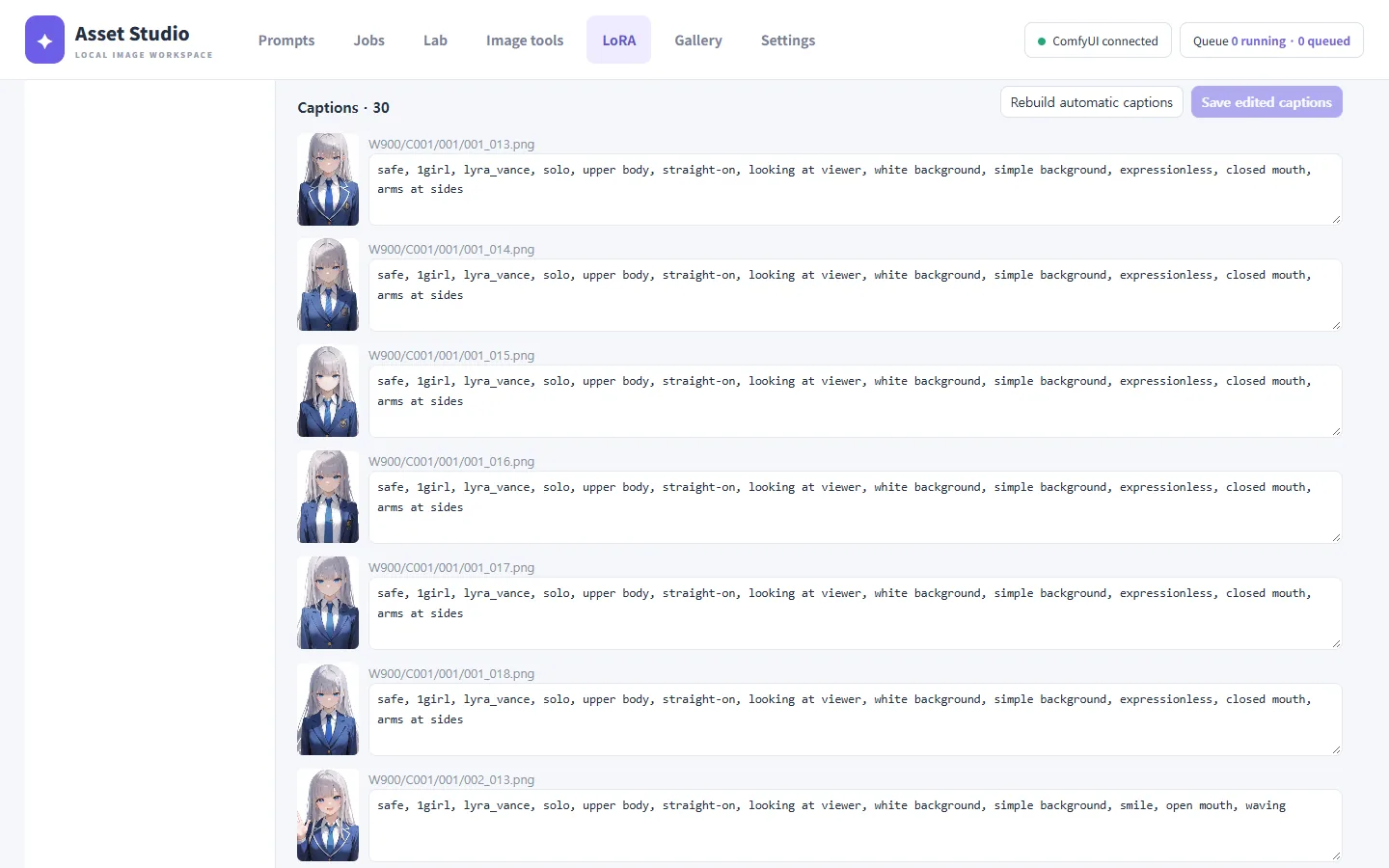
Edit captions directly and press Save edited captions. Rebuild automatic captions goes back to the automatic version.
A good dataset
- Number of images: 25 or more is recommended. Around 15 can make the framing unstable.
- Square images (for example 1536×1536) are recommended. With one aspect ratio only, the LoRA learns that framing too.
- Varied expressions and poses: a single pose tends to get baked in.
- Results are best when you generate with a model of the same family as the training base.
2. Training
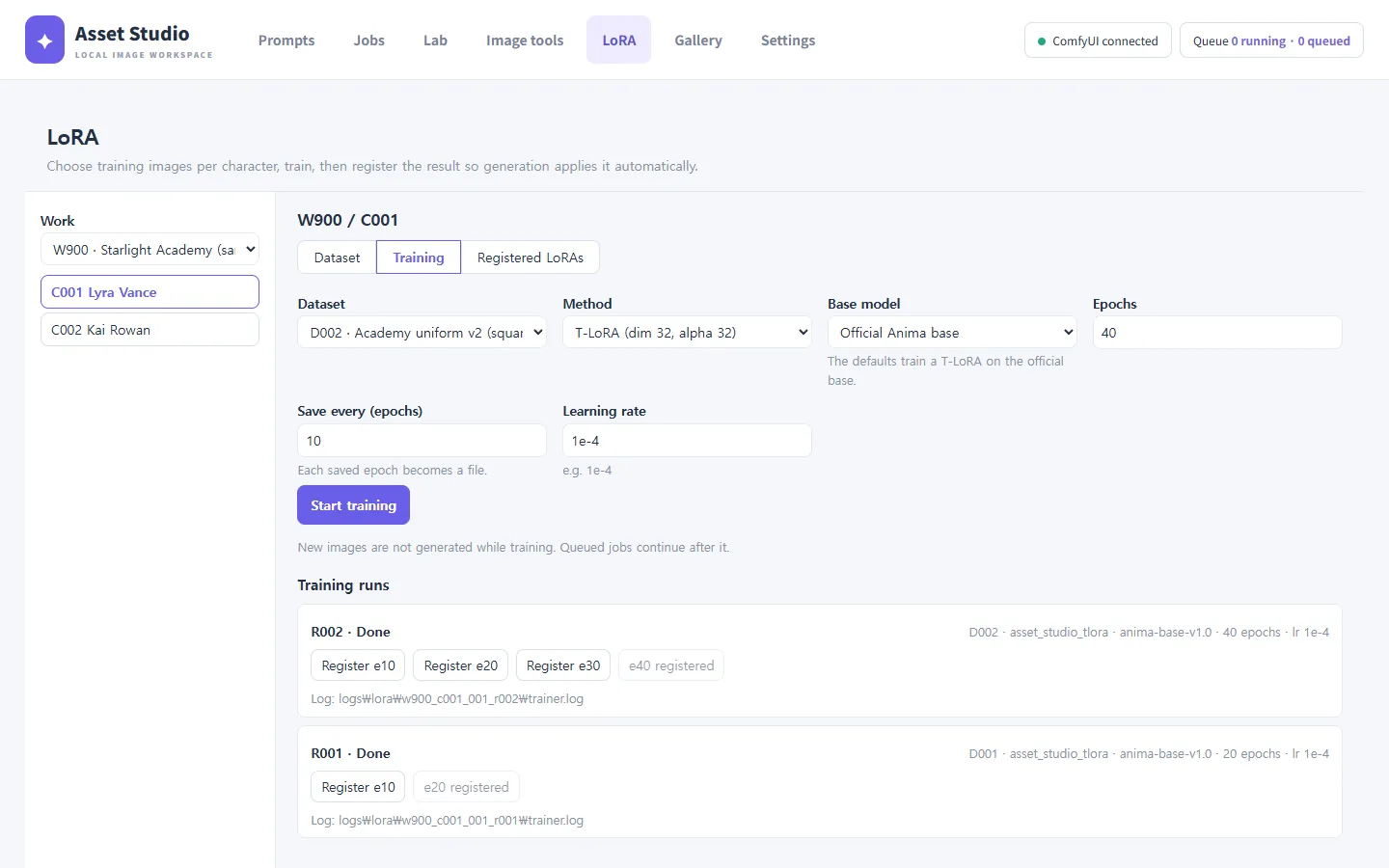
| Setting | Notes |
|---|---|
| Dataset | The dataset from step 1. |
| Method | T-LoRA (default, dim 32, alpha 32) or plain LoRA (dim 32, alpha 128). |
| Base model | Official Anima base (default) or the generation model (an Anima fine-tune set in Settings). |
| Epochs | How many times the dataset is repeated. Default 40. |
| Save every (epochs) | Keeps a file at these epochs. With the default 10 you get e10, e20, e30 and e40. |
| Learning rate | Default 1e-4. |
Start training runs preprocessing (resizing images, encoding captions) and then training; progress shows under Training runs. New images are not generated while a LoRA trains; queued jobs continue afterwards. The log is in logs/lora/<run name>/trainer.log.
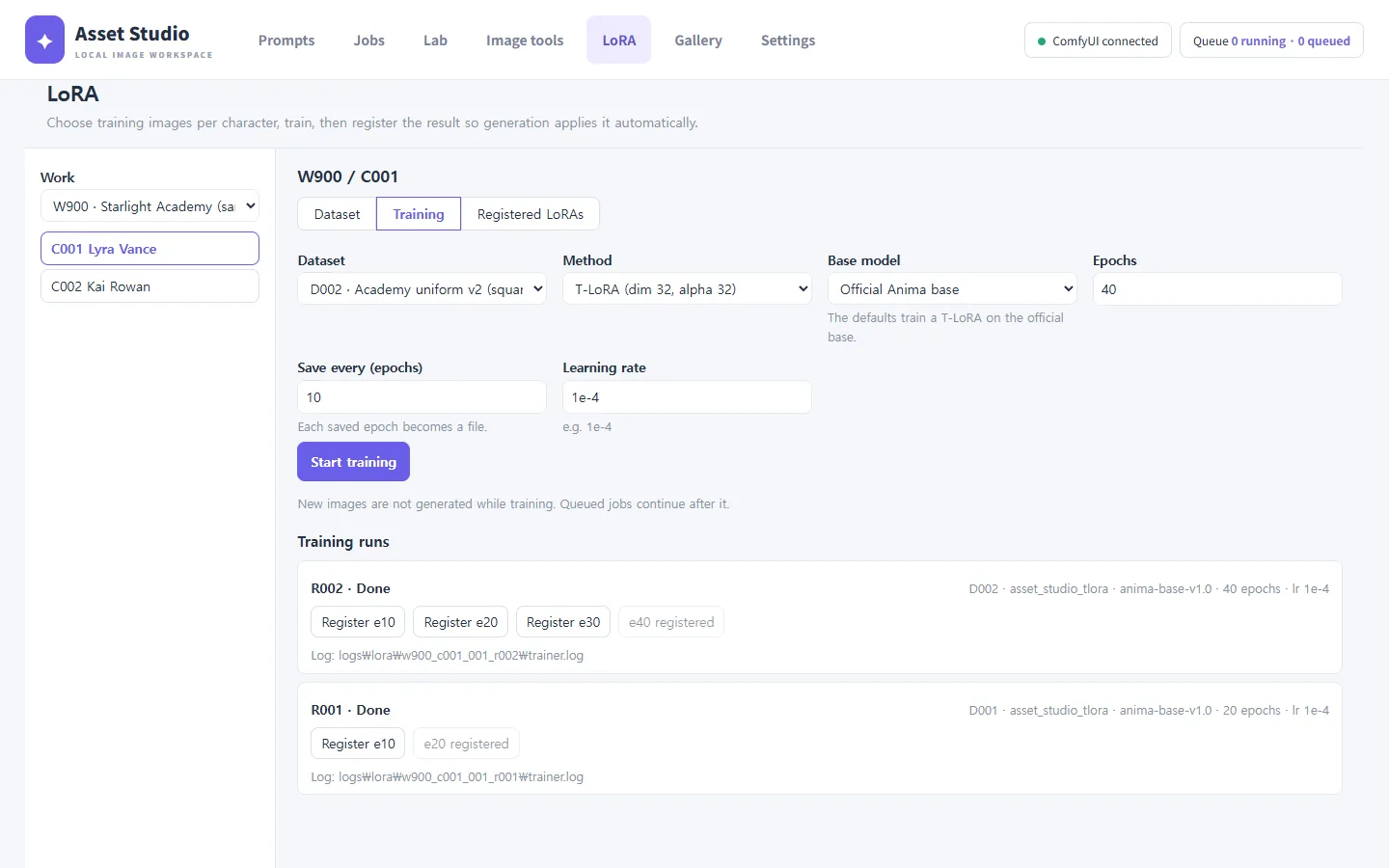
3. Register and apply automatically
When training ends, every saved epoch gets a Register eN button. Registered epochs appear in the Registered LoRAs tab.
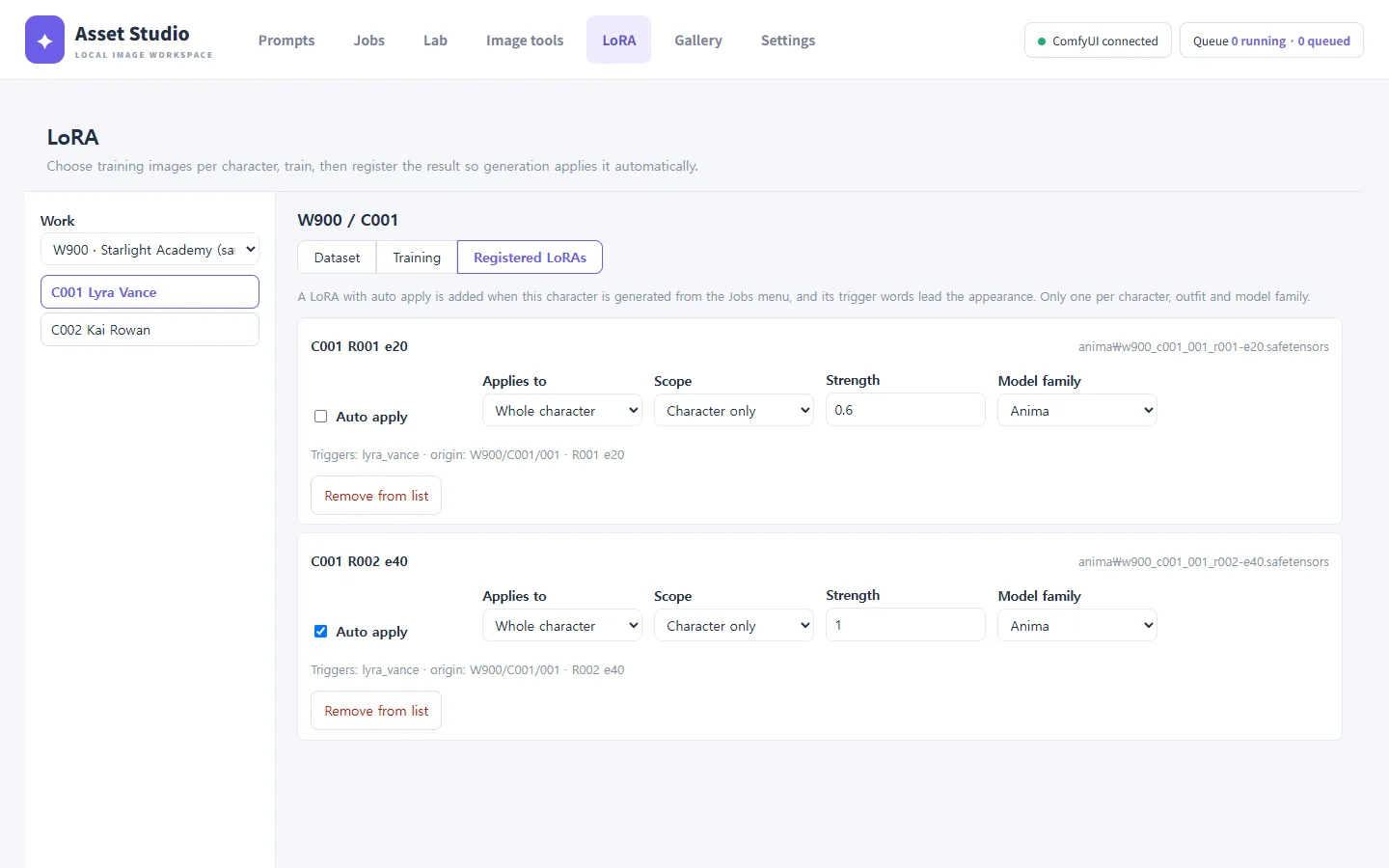
| Setting | Notes |
|---|---|
| Auto apply | When on, the Jobs menu adds the LoRA and the trigger for this character. |
| Applies to | The whole character or one outfit set. |
| Scope | This character only, or global. |
| Strength | LoRA strength. Lower it if the framing drifts. |
| Model family | The model family this LoRA is for. |
Only one LoRA per character, outfit and model family can be applied automatically. Untick Apply registered LoRAs automatically in the Jobs menu to leave it out of one queueing. The "Automatic LoRAs" line of the Jobs preview shows whether it is applied.
Choosing an epoch
Comparing epochs or strengths with the same seed makes the choice easy. Vary LoRA strength in the lab, or register several epochs and generate with the same seed.
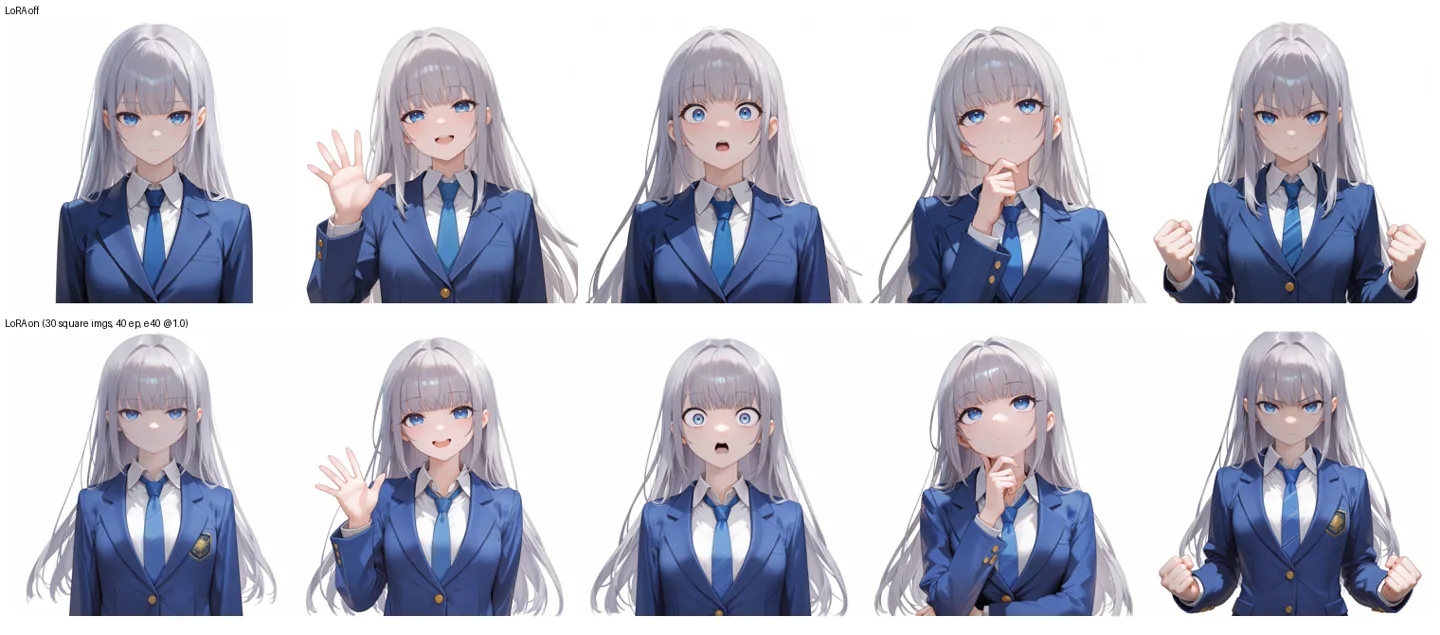
Below, the sample character trained on 30 square images for 40 epochs, with the LoRA off (top) and on (bottom) at the same seed. The chest emblem and striped tie from the dataset appear in every expression.
License
LoRAs trained from Anima weights are Derivatives under the CircleStone Labs Non-Commercial License. See the README for what that means when you share or sell them.